よくある質問
プレミアムプランの解約方法(iOS)
App Storeで登録したプレミアムプランは、端末の「設定」から状況の確認と自動更新の停止ができます。
操作するのは、iPhoneやiPad本体の「設定」アプリです。ご利用のアプリ内にある設定画面ではありません。
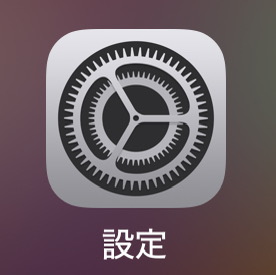
解約手順
- 端末の「設定」を開き、画面上部の自分の名前を選択します。
- 「サブスクリプション」を開きます。
- 解約したいアプリのプレミアムプランを選択します。
- 「サブスクリプションをキャンセル」を選択し、画面の案内に従って解約します。
以上の手順で、次回更新分から自動更新が停止します。
最新の操作方法や、契約が見つからない場合の確認方法は、Apple公式のサブスクリプション解約方法をご確認ください。
「iTunesとApp Store」が表示される場合
- 「設定」→自分の名前→「iTunesとApp Store」の順に選択します。
- 画面上部に表示されるApple IDを選択します。
- 「Apple IDを表示」を選択します。
- 「登録」を選択します。
- 管理する購読コンテンツを選択します。
- 購読管理のオプションを選択します。
- 「登録をキャンセルする」を選択して解約します。
How to Cancel the Premium Plan (iOS)
If you subscribed to the Premium Plan through the App Store, you can check your subscription status and turn off automatic renewal in your device’s Settings.
Use the Settings app on your iPhone or iPad. These steps are not performed in the settings screen within the app you are using.
Cancellation Steps
- Open Settings on your device and tap your name at the top of the screen.
- Open “Subscriptions.”
- Choose the Premium Plan subscription for the app you want to cancel.
- Tap “Cancel Subscription” and complete the cancellation as directed on the screen.
Once you complete these steps, your subscription will no longer renew automatically from the next renewal date.
For the latest instructions, or if you cannot find your subscription, see Apple’s subscription cancellation guide.
If “iTunes & App Store” is displayed
- Go to Settings → your name → “iTunes & App Store.”
- Tap the Apple ID shown at the top of the screen.
- Tap “View Apple ID.”
- Tap “Subscriptions.”
- Select the subscription you want to manage.
- Choose the appropriate subscription management options.
- Tap “Cancel Subscription” to cancel.